
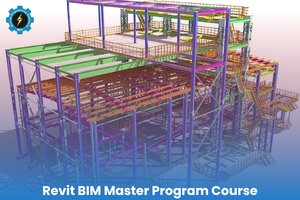
Revit BIM Master Program Course
The Complete Course conduct is intended to provide you with a strong comprehension of
Revit Architecture and Engineering, its highlights, and capacities, from scratch and basics
through to the most complicated and advance themes.
Also, it covers an overview of the visual scripting language that is DYNAMO a plug-in of Revit.
Course Objectives:
- Get acquainted with the concepts and advantage of Building Information Modeling.
- Grab the basic fundamental concepts and features of Autodesk Revit Architecture.
- Learn and implement the Parametric 3D design interface of Revit Architecture to start designing projects.
- Develop an introductory degree of confidence and certainty with Autodesk Revit
- Architecture & BIM (Building Information Modelling).
Essentials:
Basic Computer abilities and experience with the drafting guidelines.
Course Details
- Recent files screen, Project Templates and Project Setup.
- Anatomy of Different Toolbars and Navigation Views
- Project Browser overview
- Project Units
- Adding Levels
- Modifying Levels
- Grids
- Modify Wall properties
- Wall Assembly and its Structure – Wall Layers wrapping and its Shapes
- Adding Wall Profiles
- Wall Joints
- Wall Sweeps
- Wall Reveals
- Adding Doors, Windows and Openings
- Create new types and Edit Type Properties
- Existing Library
- Placing an existing Component
- Model in Place – Designing own custom element
- Working with Reference Planes and Reference Lines
- Family Categories and Parameters – Various Tools
- Solid – Extrusion,
- Blend,
- Revolve,
- Sweep,
- Sweep Blend
- Void Forms
- Modify Tools – Move, Copy, Rotate, Mirror, Array, Scale, Split element, Trim, Align,
- Offset, Grouping – Each of the 3d elements.
- Floors, Modify Properties
- Adding Floors, Sloped Floor, Floor Slab Edge
- Ceiling and Modify Properties
- Roofs by Footprints and Modify Properties
- Roofs by Extrusion
- Roof Soffits, Roof Facias and Roof Gutters
- Curtain Walls and Modify Properties
- Embedding Curtain Wall to
- Architectural Wall
- Adding Grids,
- Adding Curtain Walls,
- Reshaping Curtain Wall Panels
- Curtain Doors,
- Creating Stairs and Modify Properties
- Stair by Component
- Stair by Sketch
- Thumb rule calculation for Tread-Riser
- Railings – Modify Properties
- Railing by Component
- Railing by Sketch
- Rail profile and Balusters
- Mullions – Modify Properties
- Mullions by Component
- Mullions by Sketch
- Ramps
- Getting familiar with Generic Files and Existing Library
- Creating Generic Parametric Families to reference
- Building Masses
- Elevation Treatments
- Creating Parametric Doors and Windows families to reference with the project
- Creating other Parametric components –
- Curtain Panels
- Stair Tread
- Risers
- Balusters
- Nosing Profiles
- Hand Rails
- Free Form Geometry
- Creating Wall,
- Floors,
- Curtain Systems,
- Roof and Mass Elements
- Working with Adaptive components
- Editing Curtain Panel Patterns
- Working with Parameters – Instance/Type
- Dividing Paths by using parametric algorithm and formulas
- Reporting Parameter.
- Site Settings
- Section Box
- Creating a topo-surface
- Splitting a top-surface
- Merging a topo-surface
- Building Pads
- Road
- Apply Material,
- Material Properties and assets
- Graphics and Appearance Properties
- Render Settings and Rendering
- Sun settings
- Sun path
- Renderings
- Walkthrough
- Solar study
- Setting up and creating solar study
- Duplication Views
- Creating Plans
- Views and Plan Regions
- View Range
- Creating
- Elevation Views
- Section Views,
- Callouts
- Camera Views
- Callout Views
- Detailing Views
- Creating drafting views
- Inserting detail components
- Visibility Graphics, Object Style, Underlay Override
- View Properties
- 3d Orthographic Views / Perspective Views
- Crop Region and Section Box
- Drafting and Details Views
- Hatch Patterns
- Fill patterns
- Line weights
- Line pattern
- Line styles
- Purge unused
- Linking Cad file
- Temporary Dimensions
- Permanent Dimensions
- Modifying Dimensions
- Site Settings
- Section Box
- Creating a topo-surface
- Splitting a top-surface
- Merging a topo-surface
- Building Pads
- Road
- Working With Design Options
- Solar Energy analysis – Sun Path
- Graphic Display Option
- Group and Array
- Walk Through and Solar Study
A. Introduction
• What is Visual Programming?
• Installing And Launching Dynamo
• The User Interface and Workspace
• Getting Started
B. The Anatomy of Visual Programme
• Nodes
• Wires
• Library
• Managing Your Workflow
C. The Building Blocks of Programs
• Data
• Math
• Logic
• Strings
• Color
D. Geometry for Computational Design
• Geometry Overview
• Vectors
• Points
• Curves
• Surfaces
• Solids
E. Designing with Lists
• What’s a List?
• Working with Lists
• Lists of Lists
• n-Dimensional Lists
• Code Blocks and Design Script
• What’s a Code Block
• Shorthand
• Functions
F. Dynamo for Revit
• The Revit Connection
• Selecting
• Editing
• Creating
• Customizing
- Site Settings
- Section Box
- Creating a topo-surface
- Splitting a top-surface
- Merging a topo-surface
- Building Pads
- Road
Revit Structure Course Syllabus
1)Objective of the course
2)introduction to the course
3)CAD &BIM
4) Introduction to Revit structure.
5)Interface of Revit Structure
6)Revit initial setting, unit settings.
7)Basic information about view cube and Navigation bar.
8) Visibility Graphics settings for Revit structure.
9)keyboard shortcuts and settings.
10) Sketching and Modifying tools for Revit.
11) Dimensions Tools in Revit.
12)How to Draw Grids and levels in Revit structure.
13)How to place a structural Foundation.
14)How to place a structural column in Revit structure.
15)How to place a Structural Foundation slab in Revit structure.
16)How to place Beam in Revit Structure.
17)How to create Structural Floor in Revit Structure.
18)How to place Structural slab in Revit Structure.
19)How to create a Structural wall in Revit Structure.
20)How to create openings in Revit Structure.
21) How to link Revit and AutoCAD files in Revit Structure
22) How to Create Warehouse in Revit/RCC Structure
23) How to create a water tank in Revit Structure
24) How to place Rebar in Foundation
25) How to place Rebar in Column/ Structural Detaling
26) How to place Rebar in One way & two-way slab in Column/ Structural Detailing (Theory)
27) How to place Rebar in Beam/ Structural Detailing
28) How to place stirrups in Column in Revit Structure
29) Covering Settings & Creation for Structural Elements
30) Rebar using Area Command in Revit Structure
31) How to create a Slanted Column in Revit
32) How to Create Retaining wall in Revit Structure
33) Structural Detailing in Retaining wall
34) Reinforcement Detailing in Curved wall
35) Reinforcement Detailing of Cantilever Retaining wall
36) Reinforcement Detailing of Shear wall
37) How to do Detailing reinforcement of pile cap
38) Reinforcement Detailing of Mat Foundation
39) How to Create or use a Rebar Coupler in Revit
40) Simply Supported Beam in Revit
41) Doubly Reinforced Beam in Revit
42) Staircase in Revit (Design and Reinforcement Detailing)
43) How to provide automatic reinforcement in (Column, Beam, pile foundation, Retaining
wall, Slab corner, Wall Corner)
44) Steel (Theory)
45) How to place a steel column in Revit
46) How to place a steel beam in Revit
47) How to create a column using Beam System
48) How to Create Brace in Revit/ Bracing System
49) Modeling of steel Truss/ Shed
50) Different types of Trusses in Revit
51) How to Load steel Connection in Revit.
52) How to provide base plate connection
53) How to provide base plate cut connection.
54) How to provide a base plate with traverse bolted
55) How to provide a base plate with Welded.
56) How to provide moment column splice connection.
57) How to provide moment End plate connection
58) How to detail an apex haunch connection
59) Eaves haunch Detailing in Revit
60) Clip angle steel connection
61) Revit rebar shapes and schedules.
62) How to calculate rebar weight in Revit
63) How to prepare Rebar weight in Revit
64) How to create a Structural Column Schedule
65) How to create a Structural Foundation Schedule in Revit
66) How to create a Structural Beam schedule in Revit
67) Complete Scheduling and Quantities (BBS)
68) Preparing Documentation and Structural Drawing Sheets.
Analysis:
69) Applying Gravity (Dead & Live) Loads in Revit Structure
70) Applying Lateral Load (Wind load) in Revit Structure
71) Applying lateral load (Earthquake load ) Seismic load in Revit Structure
72) Analysis & Exploring Analysis Result in Revit Structure
73) Slab Detailing & Arranging viewpoint in Revit
Robot Analysis :
74) Export Model from Revit to Robot Structural analysis and applying load.
75) Analysis and Design in Robot Structural Analysis
76) Provide Reinforcement detail in Robot
77. Live Projects: Complete Structural Modeling using AutoCAD and Robot Structure
Analysis
Revit MEP LIVE Professional Course
1. Introduction to Revit MEP
2. Revit MEP Syllabus Details
3. Introduction to the Welcome Screen of Revit
4. How to Choose the Template File
5. How to start the Project file
6. Introduction to the User Interface
7. Exploring System Tab
8. Exploring Mechanical Settings
9. Exploring Plumbing Settings
10. Exploring Electrical Settings
11. How to Link Revit File
12. How to Create Spaces in Revit MEP
13. How to Separate Spaces in Revit MEP
14. How to Make Space Tag
15. How to Create Zones in Revit MEP
16. How to Calculate Area & Volume in Revit MEP
17. How to Create Color Scheme
18. What is Copy & Monitoring
19. How to Create Floor Plan Ceiling Plan
20. What is HVAC & Introduction/ Scope
21. Standard of HVAC
22. Heating & Cooling Load Calculation Part – 1
23. Heating & Cooling Load Calculation Part – 2
24. How to Create Schedules in Revit MEP
25. What is Air Terminals/ Diffusers
26. How to Apply Air Terminals Part – 1
27. How to Apply Air Terminals Part – 2
28. What is VAV?
29. How VAV Works?
30. How to Apply VAV in Revit MEP
31. How to Calculate CFM for VAV
32. Air Terminals Representation by Colors and Symbols
33. How to Create a System in HVAC
34. What is Ducts & it’s types?
35. Automatic Ducts Creation
36. Manual Ducts Creation Part – 1
37. Manual Ducts Creation Part – 2
38. How to Create Multi Level HVAC
39. What is AHU & It’s Types
40. How AHU works?
41. How to insert single split AHU in HVAC?
42. How to Create Single split system in HVAC?
43. How to Insert Multiple AHU System in HVAC?
44. How to Create Multiple AHU System in HVAC?
45. How to Connect Ducts to VAV?
46. How to Apply Return Diffusers
47. How to Design Duct Routing for Return System
48. How to Connect Chiller to Multiple AHU System
49. How to Copy Return System on Multiple Level
50. How to Connect Return System to Multiple AHU System
51. What is Ducts Insulation & How it’s Applied?
52. Duct lining in Revit MEP
53. System Inspector
54. Duct pressure Loss Report
55. Color Scheme for Ducts
56. How to Connect Return System to Multiple AHU System
57. What is Duct Insulation & How we can apply it?
58. What is Duct lining & How we can apply it?
59. What is Duct Sizing?
60. What is System Inspector?
61. Color Scheme for Ducts?
62. Duplicating Views?
63. Duct Pressure loss report & Element ID
Electrical Segments for Revit MEP
64. Introduction of Electrical Design in Revit MEP
65. How to Create Floor Plan in Electrical Light Discipline
66. How to Create Ceiling plan in Electrical Lighting Discipline
67. What is illuminance & It’s Unit
68. How to Set Unit for Electrical
69. How to Create Parameter in Revit Electrical
70. How to Calculate Lux Value & Lumens Value for Electrical
71. How to Create Lighting Schedule in Revit MEP
72. What is Lighting Fixtures
73. How to Apply Lighting Fixture in Revit MEP
74.How to create balance between calculated lux value & average estimated illumination
75. Circuit diagram for Electrical
76. Type of Switches
77. How to apply switches in Electrical
78. How to Create Switch system in Revit Electrical
79. How to Apply Sub Panel in Revit MEP
80. How to Create Power System in Revit MEP
81. How to Create panel schedule in Revit MEP
82. How to Create Panel Schedule & Power System for VAV in Revit MEP.
83. How to Create power system and panel schedule for main panel in Revit MEP
84. What is Transformer & How it works?
85. How to apply transformer in Revit MEP?
86. How to Create Power System for Transformer in Revit MEP?
87. How to Create wiring routing in Revit MEP?
88. What is Conduits & How to create it in Revit MEP?
89. How to Design Conduits Routing in Revit MEP?
90. How to Create Parallel Conduits in Revit MEP?
91. What is Cable Tray?
92. How to Design Cable Tray Routing in Revit MEP?
Course Duration & Fees
- 150,000
- Course Duration 6 Month
- Online Session Duration 1 Hour
- On Campus Training Duration 2 Hours
- Video Lecture Available
- English
- Burraq Certificate
- International UK Certificate
- ISO Certification
- Life Time Video Access
- 100+ Real Time Projects Data will be Shared
- Dwg and PDF Files
- Note: Individual classes for this course are available at double the standard fee.